Help/Getting started
Getting started
asyncmate runs your team's standups and check-ins inside Slack, and in beta, Microsoft Teams. This guide takes you from installing the Slack app to your first digest in about ten minutes; the Teams install steps are on the Microsoft Teams page, and everything from step 3 on is the same.
1Sign in with Slack
Click Add to Slack for free on asyncmate.com. Slack asks you to sign in first, which creates your asyncmate account. You can also sign up with Google, Microsoft, or a magic link sent to your email. There is no password to manage.
2Add the asyncmate app to your workspace
Right after you sign in, Slack shows the app's permissions. Approve them and you land in the asyncmate dashboard with your channels and members synced. Every permission is explained in Slack permissions. If app installs are restricted in your workspace, Slack sends an approval request to your admin instead, and getting approved by your Slack admin has a message you can paste.
If someone on your team already added asyncmate, the dashboard says so and lets you ask them for access.
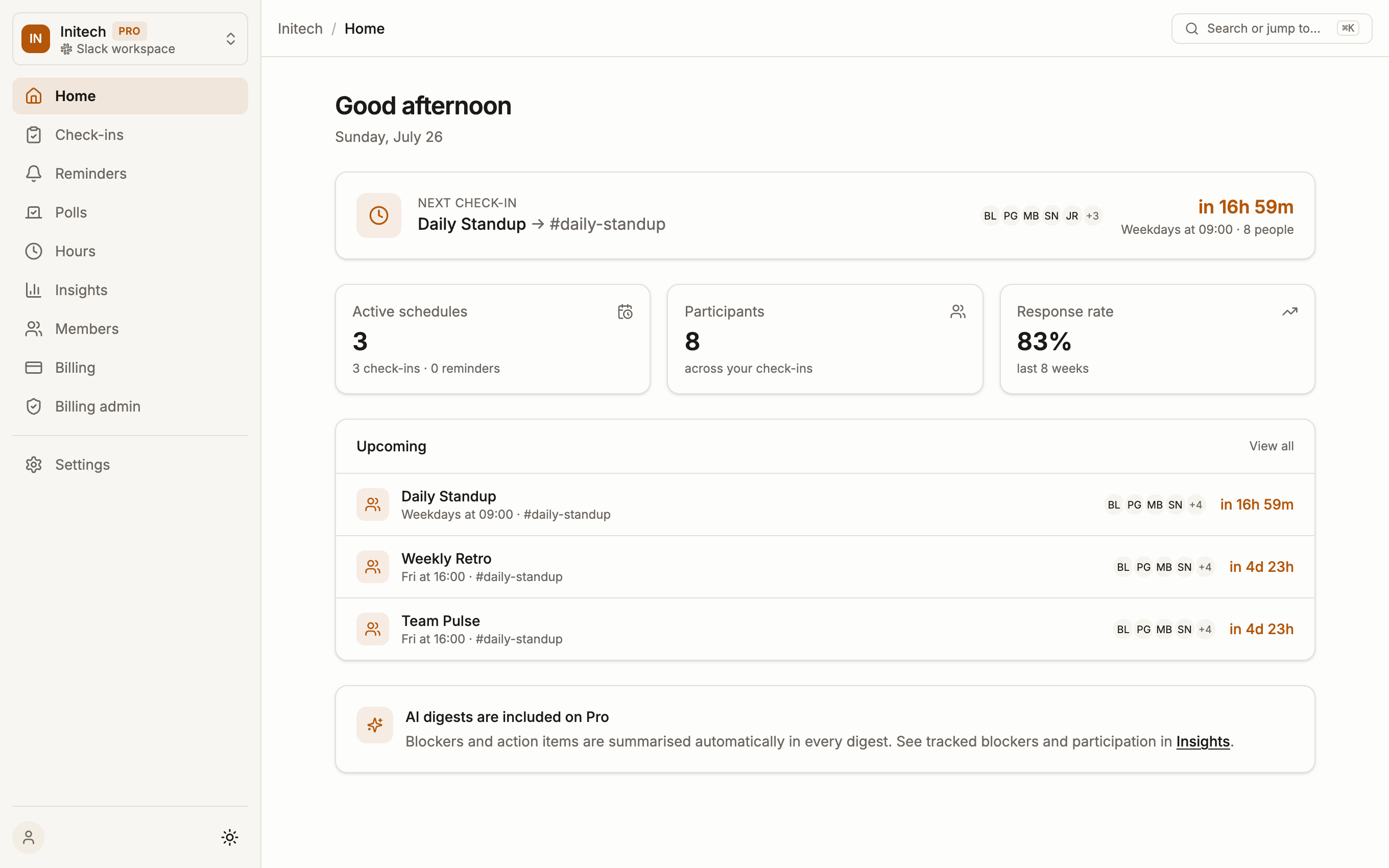
3Create your first check-in
Go to Check-ins and click New check-in. The Standup preset gives you the three classic questions out of the box. The Create a standup check-in guide walks through questions, schedule and participants in detail.
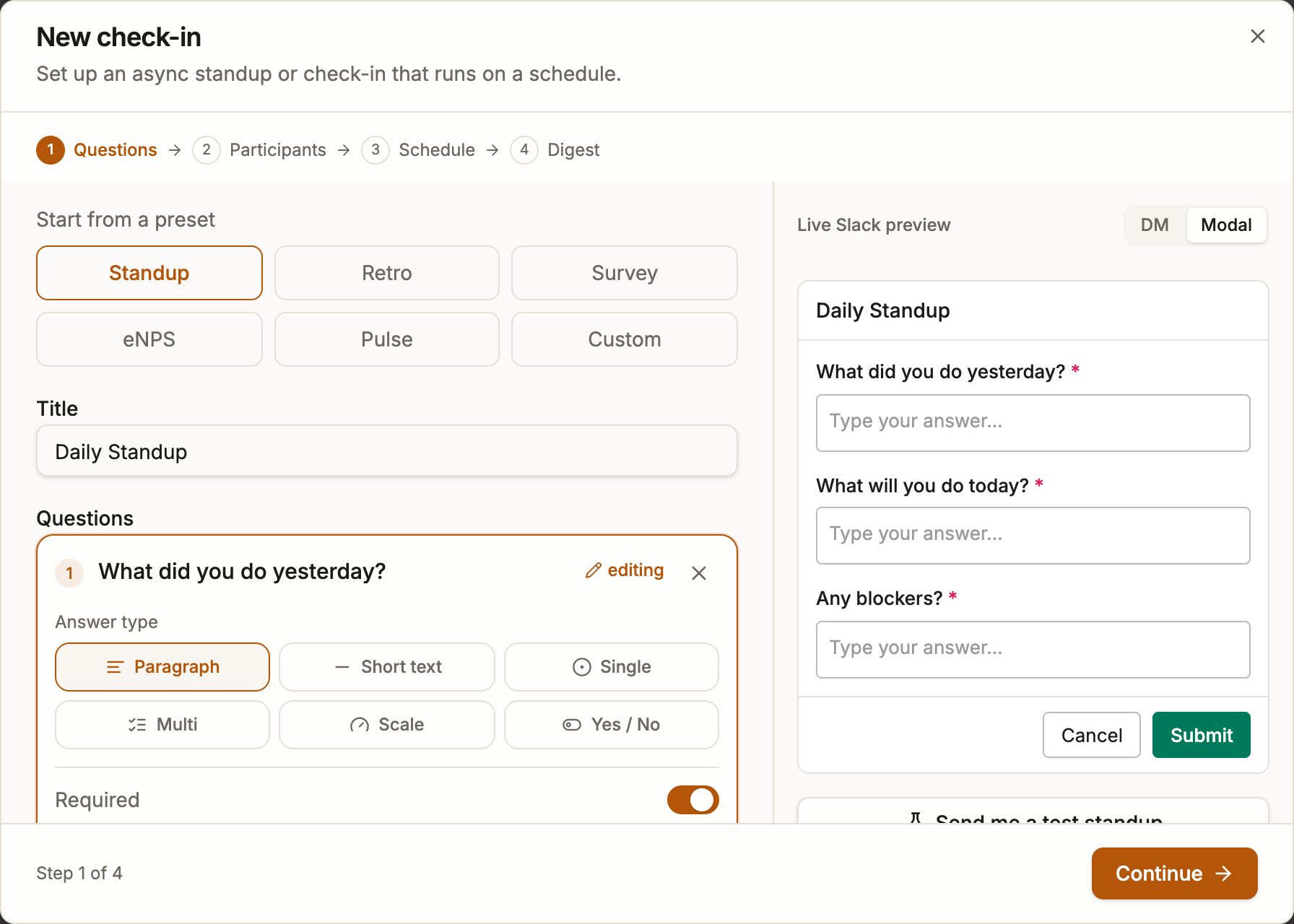
Tip: use Send me a test standup in the check-in builder to try the whole flow on yourself first. You get the DM, answer the questions and see the digest exactly as your team will. Nothing is saved.
4Your first digest
When the check-in runs, every participant gets a Slack DM with the questions. The answers are collected into a single digest and posted to the channel you picked. On the Pro plan the digest opens with an AI summary of blockers, action items and shipped work.
That's the core loop. From here you can add hours logging, polls and surveys, or plain channel reminders, which are free forever.