Help/Log hours
Log hours
The hours logger asks each person how many hours they worked and on what, then collects everything into reports you can review and export.
1Create an hours logger
Go to Hours and click New hours logger. Give it a name, so several loggers are easy to tell apart, then pick who logs hours and when the prompt goes out. Delivery follows each person's own timezone by default, so a distributed team is always asked at a sensible local hour.
Optionally pick a Weekly summary channel. Every Monday morning the logger posts last week's hours there: totals by person and by project, overtime, and who on the roster did not log anything (people on leave that week are left out).
2Set up projects and assignments
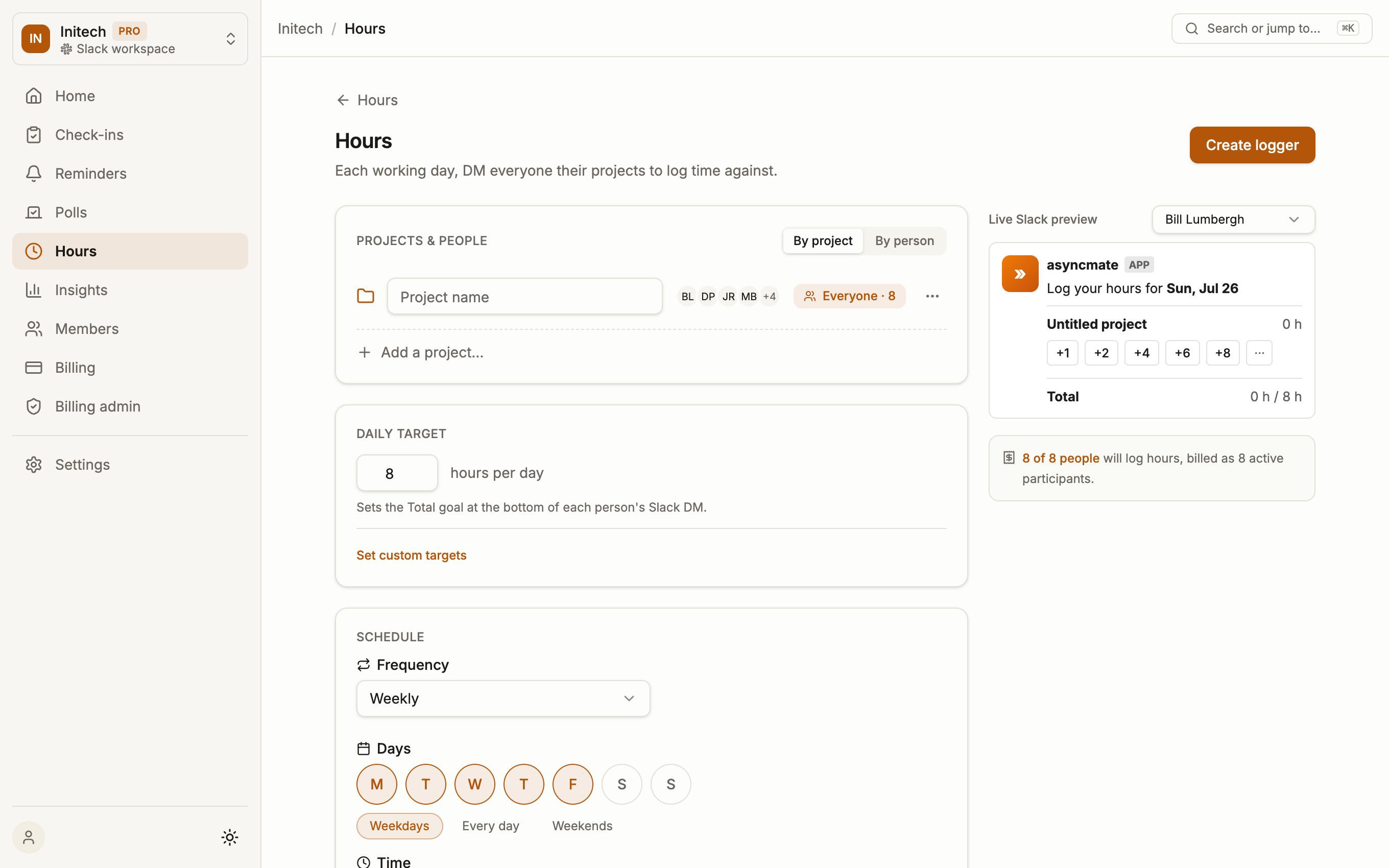
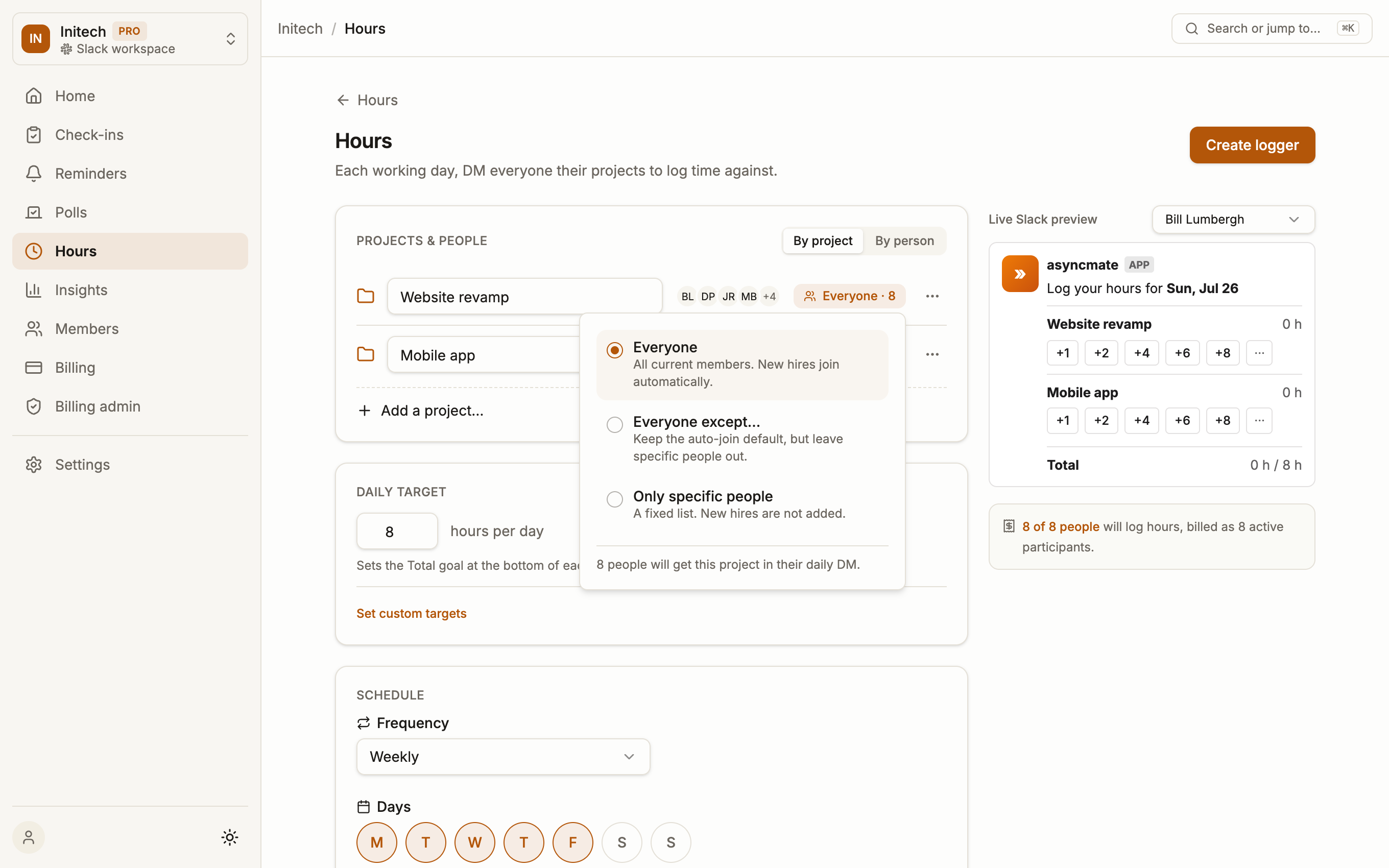
Click Add a project to pick one of the workspace's projects, or type a new name and choose Create project. A new project starts with nobody on it, so choose who gets it: everyone, everyone except a few people, or a fixed list. Each person only sees their own projects in the prompt, which keeps logging down to a few seconds.
3Log hours in Slack
When the prompt arrives, participants fill in their hours directly in the DM. No timers and no separate tool to open. The Edit option on a project also takes an optional note, so "3 h" can carry "ACME-42 login bug" onto the invoice.
Missed a day, or want the card before the scheduled time? Type /asyncmate hours for today's card, or /asyncmate hours yesterday (or a date in YYYY-MM-DD form) to log a past day. The card arrives as a DM and works exactly like the scheduled one. It reaches back up to 31 days, inside the logger's edit window. On Microsoft Teams, message the bot hours yesterday instead.
4Review and export
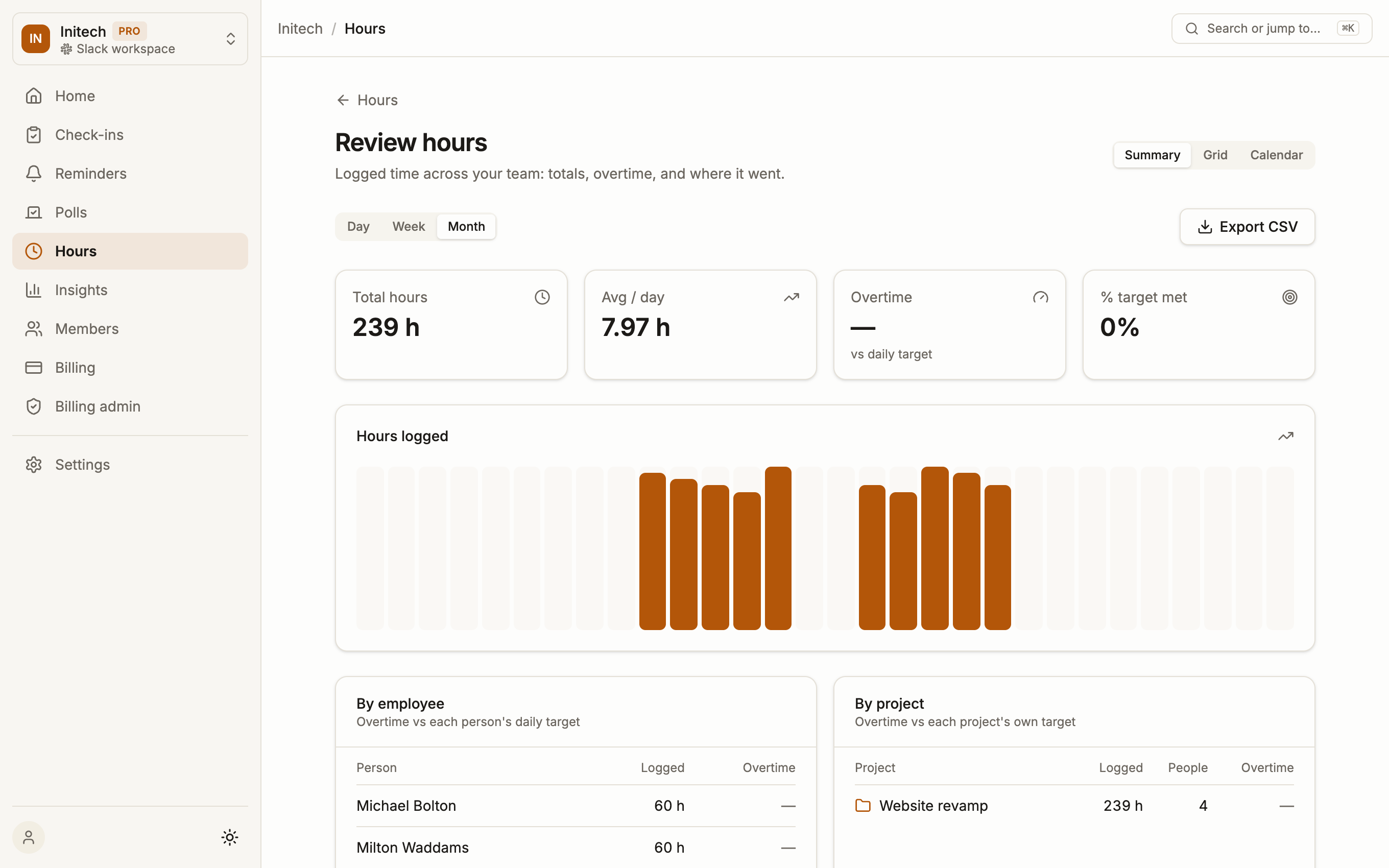
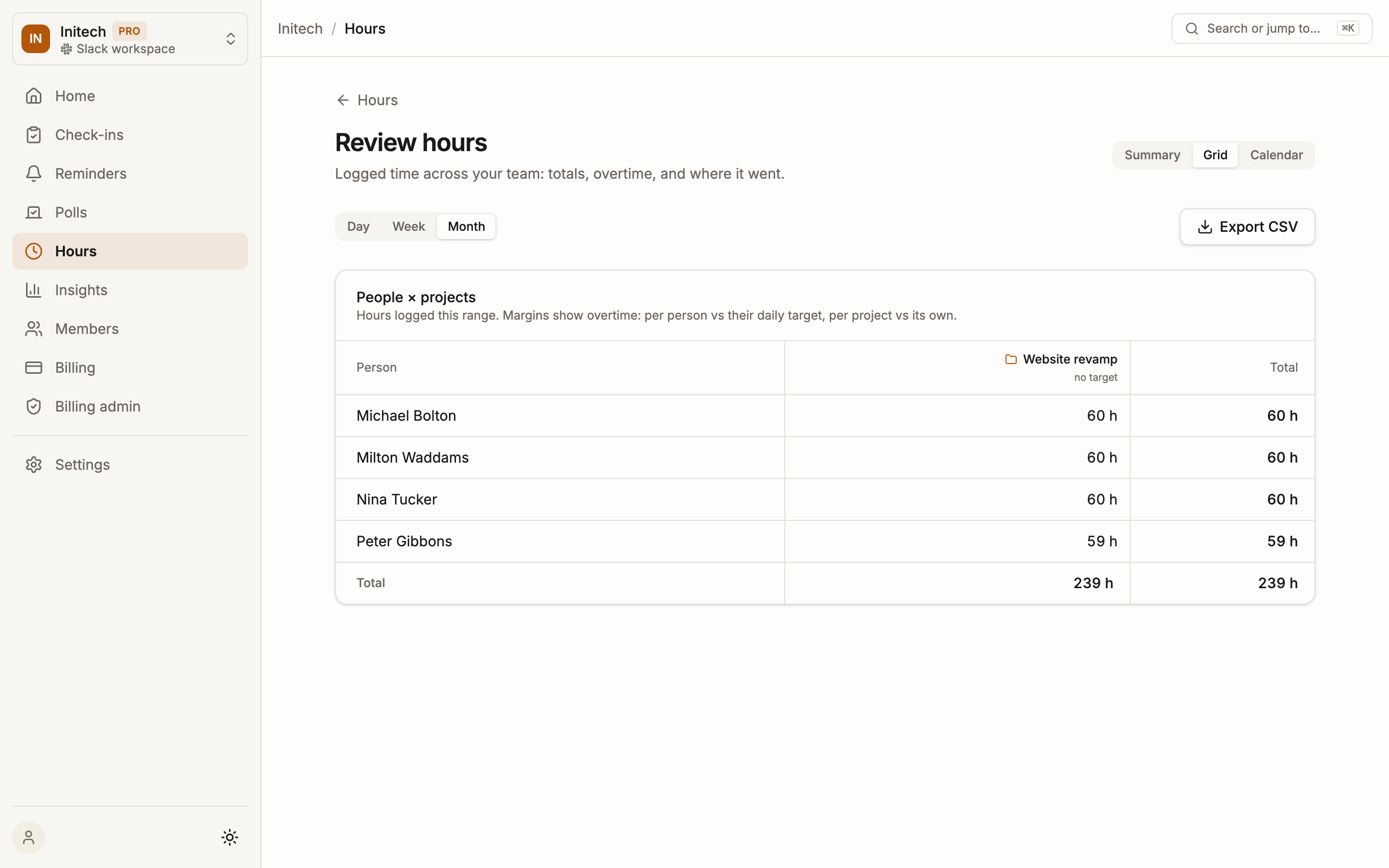
The Hours section gives you three views: Review for totals by person or project, Calendar for a day-by-day picture, and Export to download a CSV for payroll or invoicing. Pick a day, a week or a month and step back through earlier ones with the arrows; the export covers the period on screen.
To see what the hours are worth, give a project an hourly rate on the Projects tab (Members → Projects) and set the workspace currency there. Review then shows a cost per person and per project, and the export gains Rate and Cost columns. Rates can be entered on any plan; the cost figures are a Pro feature.
Note: on the free plan, reporting covers the last 90 days. The Pro plan keeps the full history. See Billing and pricing.