A Slack standup bot that runs the standup without you
asyncmate asks each teammate the questions by DM in their own timezone, waits for the window to close, and posts one digest to your channel. Nobody joins a call, and nobody chases.
Time for your daily check-in.
1 · What did you ship yesterday?
2 · What is on for today?
3 · Any blockers?
Tomas 9:12 AM
Migrated the billing webhooks. Today: backfill the old events. Blocked on the Stripe key rotation.
Window closes 9:30 · 1 person still to answer
What a Slack standup bot does, and what it replaces
Every team on Slack runs a standup one of three ways. The first two are free and both stop working around week three.
A reminder and a thread
Slack's /remind pings the channel, people reply in a thread. Free, and it works for a week. Then it depends on who remembers, the thread is unreadable by Thursday, and nobody knows who skipped.
A standup meeting
Fifteen minutes that turns into thirty, at one time that suits one timezone. The update is said once and lost, and every day off is a scheduling conversation.
A standup bot
The bot asks each person by DM at their own local time, collects the answers in writing, and posts one digest to the channel. The update is readable later, who is missing is visible, and the history is searchable.
The longer version, with the trade-offs both ways, is in async standup vs daily standup meeting. If you just want the questions, start from the daily standup template.
The three things that make a written standup survive week two
Most async standups die because the bot asks at the wrong hour, the answering is a chore, or half the team quietly stops.
Asked in their timezone
9:00 means 9:00 where each person is. A team split across Zagreb, London and San Francisco gets three sensible mornings, not one bad one.
Answered in a Slack modal
The DM opens a form with your questions. No syntax to remember, no thread to scroll, and a partly-filled answer is not lost on the way.
Tracked without chasing
Snooze brings the prompt back while the window is open, and the digest names whoever did not answer. Nobody keeps a mental list of who to poke.
A standup day, from question to digest
9:00
The questions go out
Every participant gets a DM at 9:00 their time. The message opens a form, so answering is typing into three fields rather than composing a message.
9:00 to 9:25
The team answers
Two minutes each, whenever it fits. A bad moment is one tap on Snooze, and the prompt comes back while the window is still open.
9:30
The digest posts itself
The window closes and one message lands in your channel with everybody's update in it, and the names of anyone who did not answer. On Pro it opens with an AI summary of what moved and who is blocked.
The digest is the part managers actually read. See what the AI writes into it, or compare the four ways to get an AI summary in Slack, bot or not, in AI standup summaries in Slack.
Setting one up takes about two minutes
- Pick a preset or write your own questions. Standup, Retro, Survey, eNPS and Pulse all start from one, and each question can be a paragraph, short text, single or multi choice, a scale or yes/no.
- Choose the days and the time, and whether the clock follows each person's timezone or one fixed one.
- Add participants from a Slack channel in one step instead of picking names one at a time.
- Point the digest at a channel, and set how long the response window stays open.
- Run a test standup that persists nothing, so you can see the real DM before anyone else does.
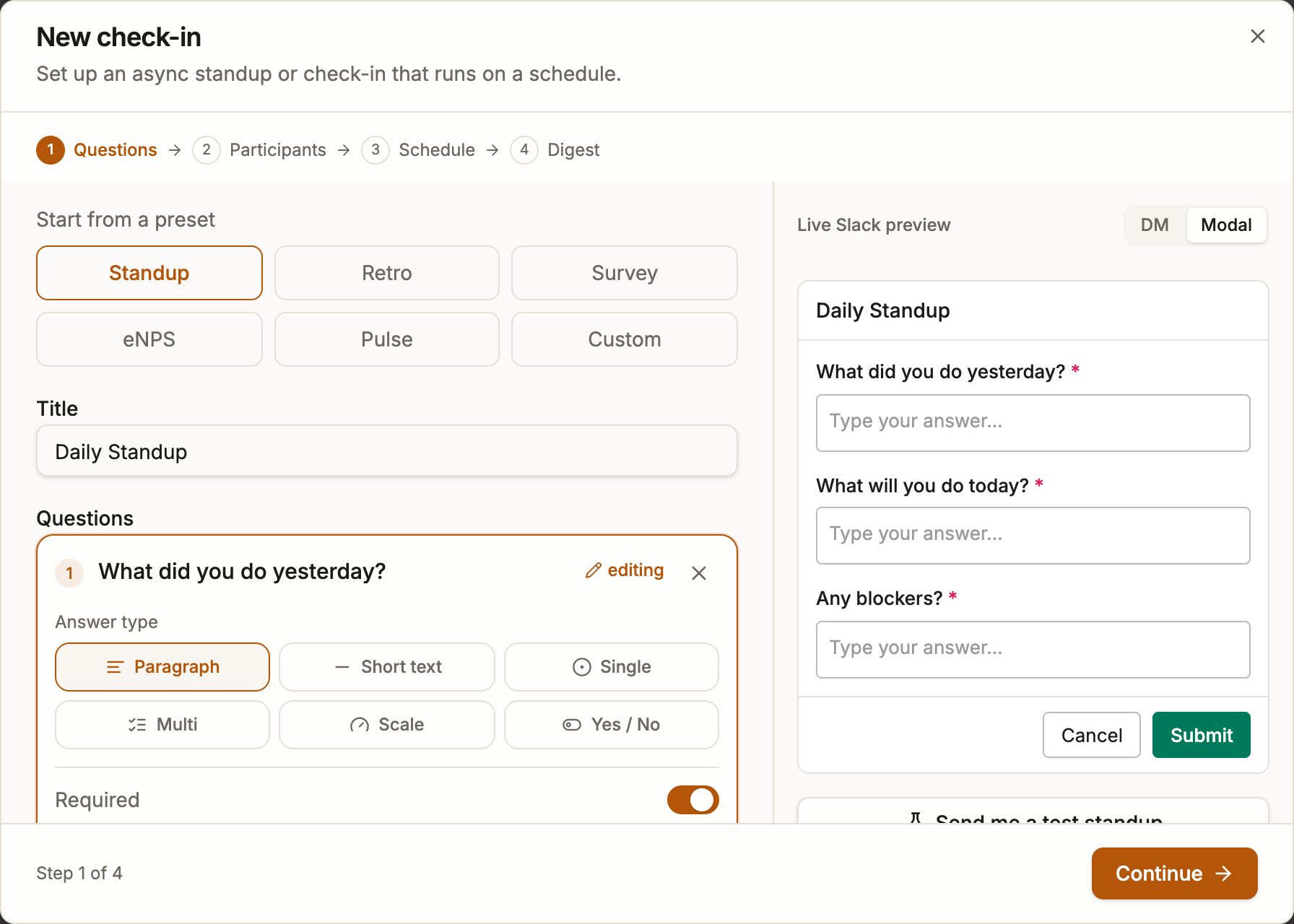
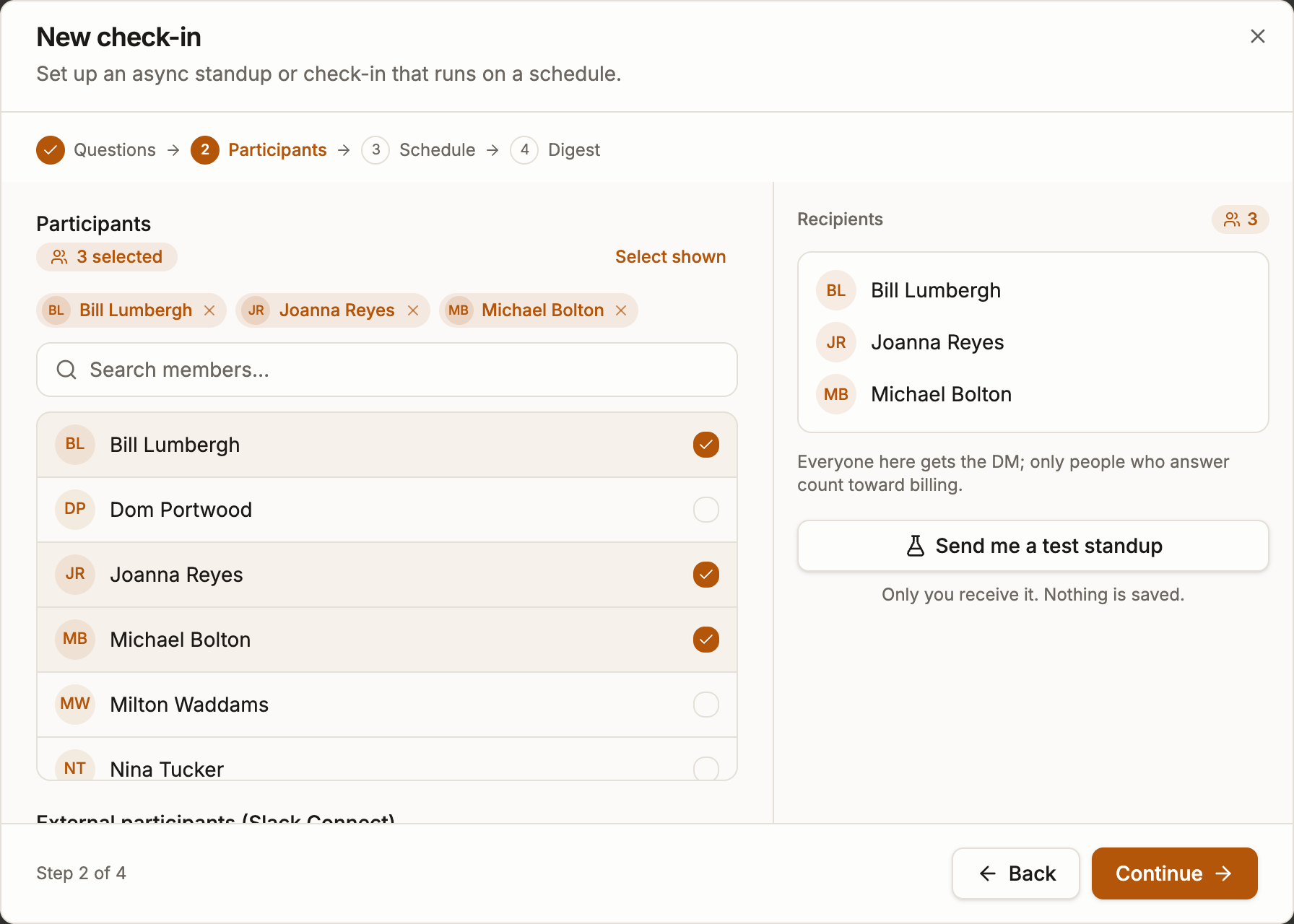
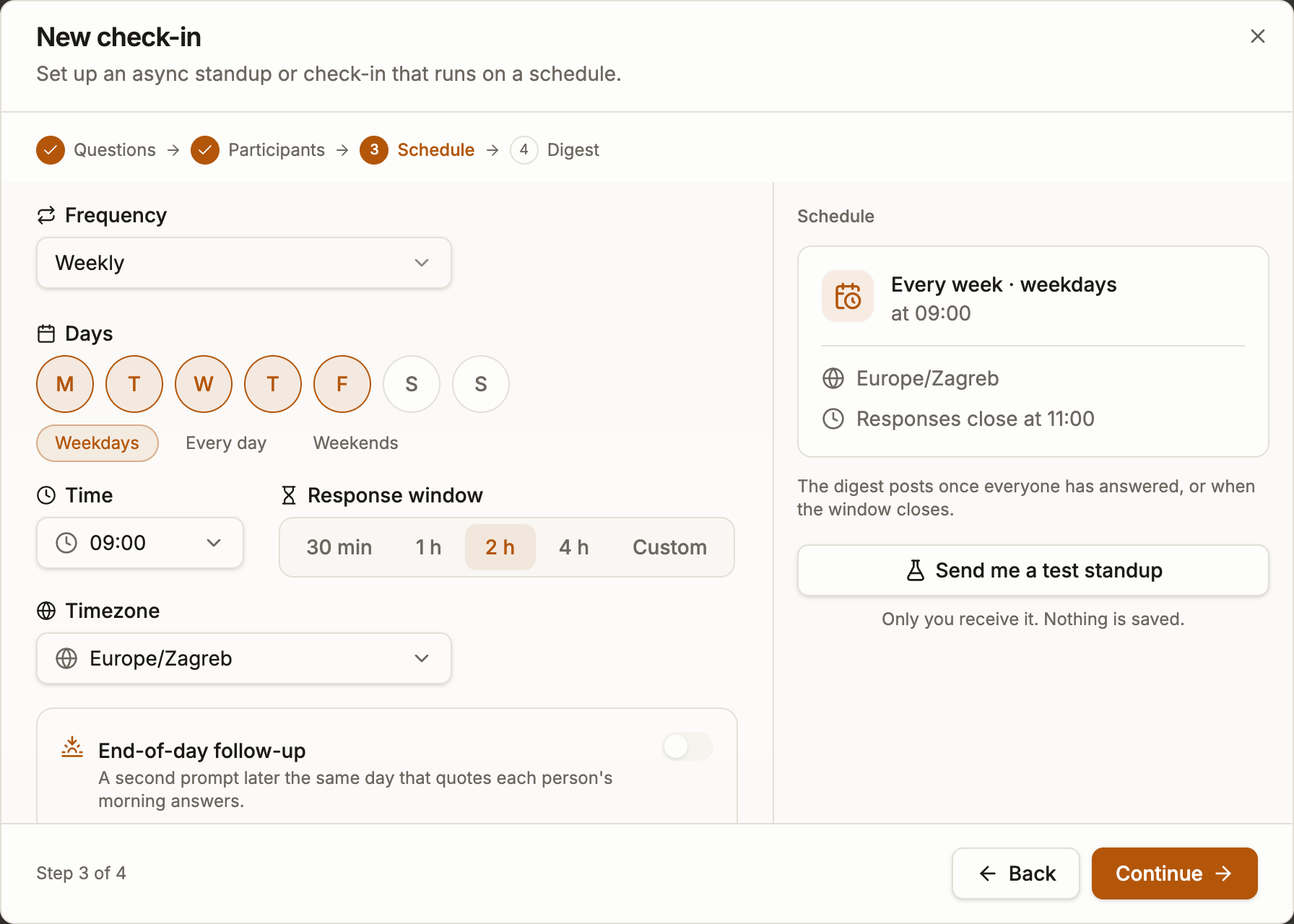
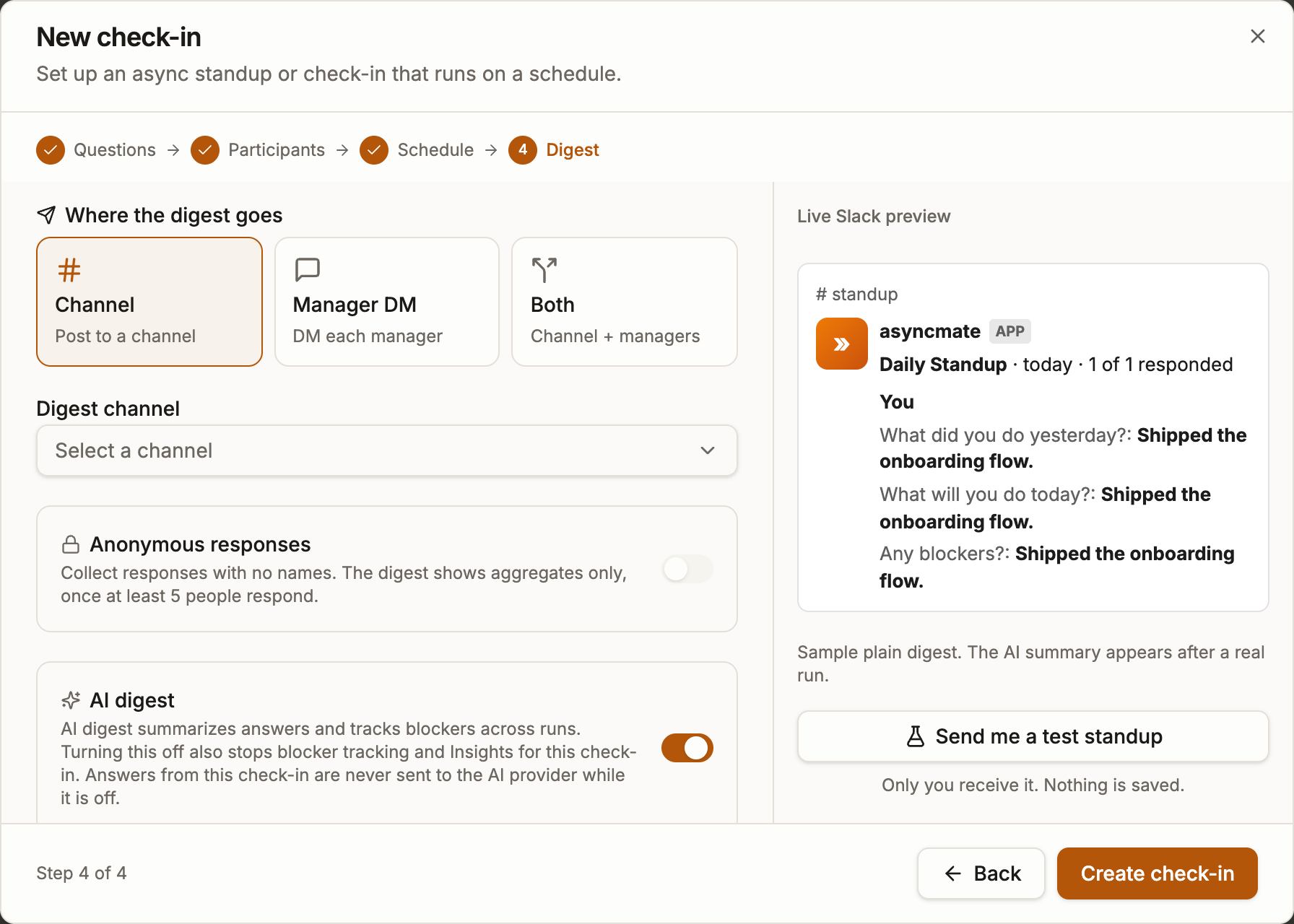
Step by step, including the test run, in Create a standup check-in. Teams spread across timezones should read standups across time zones first.
The day-to-day happens in Slack, not in a dashboard
Participants never need to log in anywhere. Answering is the DM; everything else is one slash command with a verb after it.
/asyncmate skip- Skip today's standup without editing anything.
/asyncmate snooze- Pause your own prompts for a while; they come back on their own.
/asyncmate ooo 5- Out of office for the next five days. No prompts, no missing mark.
/asyncmate tz Europe/Zagreb- Tell the bot which timezone your 9:00 is in, if Slack has it wrong.
/asyncmate status- Which check-ins you are in, and when the next one is due.
/asyncmate dashboard- A link straight into the run history and settings.
Archive every standup to Notion, without Zapier
A digest in a channel is read that morning and scrolled past by Friday. On Pro, connect Notion once and asyncmate creates a check-ins database in a page you choose. From then on, every closed run becomes a page there: who answered and what, the AI summary when it ran, who did not respond, and a link back to the run. Columns for date, check-in, response count and blockers make it a real database you can filter and chart, not a pile of pasted text.
The other standup bots get to Notion through a Zapier recipe, if at all: a second account, a monthly bill and a field mapping to maintain. Here it is one toggle per check-in.
Setup, the columns and what happens if you rename one, in Send check-ins to Notion; the Zapier route and Notion's own Slack app, for comparison, in how to send Slack standups to Notion.
Free for 10 people who answer, then $2.50 each
The bill counts one thing: people who answered a check-in or logged hours in the last 30 days. The first 10 are free, with no card and no expiry. Everyone who only reads the digest, votes in a poll or gets a reminder is never on it, whatever the size of the channel.
Pro is $2.50 a month for each of those people, at any team size, and adds the AI summary at the top of each digest, anonymous surveys and history past 90 days. Someone who stops answering drops off the count by themselves.
What the free plan covers, and what other free plans quietly leave out: free Slack standup bot. The full split is on the pricing page.
How it compares with the other Slack standup bots
Every standup bot runs the same loop: ask, collect, post. They differ in price, in who counts as billable, and in what rides along. One page per competitor, with their numbers taken from their own pricing page and dated.
- Geekbot alternative for Slack standups
Their annual rate, billed monthly. Polls stay free.
- DailyBot alternative for Slack check-ins
We bill the people who answer, not every active seat.
- Polly alternative for Slack polls and surveys
Standups on the free plan, not from $19 a month.
- Standuply alternative for daily standups
One rate at any team size, no annual commitment.
- Troopr alternative for Slack standups
Standups without the Jira suite, under a third of the seat price.
- Range alternative for async check-ins
Check-ins without the $8 teamwork suite around them.
- StandupBot alternative with a free plan
Free up to 10 who answer, against their $19 floor.
All of them side by side, including the ones we do not have a page for, in the best standup bots for Slack. The two most-asked-about get their own reviews: Geekbot review and DailyBot review.
Slack standup bot FAQ
- What is a Slack standup bot?
- A bot that asks your team the standup questions on a schedule and collects the answers in writing, instead of everyone joining a call. asyncmate direct-messages each participant, waits for a response window to close, then posts one summary to a channel so the update is readable later rather than said once and lost.
- Do people have to be online at the same time?
- No. That is the point of an async standup. Each person is asked at their own local time and answers whenever they get to it during the response window. Nobody waits on anybody, and a team spread across time zones never needs one shared meeting slot.
- Is the Slack standup bot free?
- Yes, for up to 10 active participants. An active participant is someone who answered a check-in or logged hours in the last 30 days. People who only read the digest in a channel, vote in polls or receive reminders are never billed, however many of them there are.
- Can the standup run weekly instead of daily?
- Yes. The schedule is any set of weekdays at a time you choose, so a Monday planning check-in, a Friday retro or a daily standup are all the same setup with different days ticked. A team can run several check-ins with different schedules and different participants.
- Does the digest show who did not answer?
- Yes. When the response window closes, the digest lists everyone's answers and names the people who did not respond, so a quiet week is visible without anyone scrolling back. Someone who is out of office is not listed as missing.
- What happens when somebody is on holiday?
- Set an out-of-office period, from Slack or the dashboard, and asyncmate stops asking for that stretch and resumes afterwards. A single day can be skipped instead with a skip or snooze command, so one day off does not mean editing the schedule.
- Can I change the questions later?
- Yes. Questions, schedule, participants and digest channel are all editable after the check-in is running. Past runs keep the questions they were actually asked with, so history does not silently rewrite itself.
- Which questions should a daily standup ask?
- The preset starts from the classic three: what you did, what you are doing today, and what is blocking you. Most teams keep those and add one question that fits them, such as a confidence scale or a one-line mood. The help guide on daily standup questions has sets for engineering, product and remote teams that paste straight in.
- Where do the answers end up?
- In the digest posted to your chosen channel, and in the check-in's run history in the dashboard, where you can open any past run or export it. On the free plan that history covers a rolling 90 days; Pro keeps all of it.
- Can the standup bot send standups to Notion?
- Yes, natively on Pro. Connect Notion once in Settings, pick a page, and asyncmate creates a check-ins database there. Every check-in with Send to Notion switched on then gets one page per run: who answered and what, the AI summary when it ran, who did not respond, and a link back to the run. No Zapier account and no field mapping.
- Does it work in Microsoft Teams?
- Yes, in beta. The same check-ins, reminders, polls, kudos and hours logging run in Microsoft Teams, with the same digest and AI summary, from the same account. The app installs through your org's app catalog while the Teams Store listing is pending; the Microsoft Teams page has the three setup steps.
Get your mornings back
Add asyncmate, pick the standup preset and choose a channel. Free for up to 10 people who answer, and reminders stay free for everyone.
The rest of the same install
- What the AI standup digest writes
- Asking the AI about your check-ins
- Connecting Claude or ChatGPT over MCP
- Logging hours by project in Slack
- Running a one-tap poll in Slack
- How anonymous surveys stay anonymous
- Giving kudos in Slack
- Starting a countdown in Slack
All of it is one app, in Slack or Microsoft Teams. See every feature or check what a team your size would pay.